 BlackScreen.live
Monitor Cleaning & Maintenance Guide
Monitor screens are delicate. The anti-glare coating on matte screens, the oleophobic coating on glossy screens, and the organic compounds in OLED panels can all be permanently damaged by incorrect cleaning products or techniques. A $10 bottle of window cleaner can destroy the coating on a $1,000 monitor.
This guide explains the chemistry of screen coatings, what damages them, and the correct cleaning procedures for every monitor type.
1. Understanding Screen Coatings
Modern monitors have multiple surface coatings that serve different purposes:
- Anti-glare (AG) coating: A micro-textured surface that scatters reflected light. Found on matte screens. Alcohol and ammonia dissolve this coating, causing permanent haziness.
- Anti-reflective (AR) coating: A thin optical film that reduces reflections. Found on some glossy screens. Extremely sensitive to abrasion and harsh chemicals.
- Oleophobic coating: An oil-repelling layer that makes fingerprints easier to wipe off. Found on glossy and touchscreen displays. Degrades with alcohol over time.
- Hard coating: A scratch-resistant layer on the outermost surface. Provides some protection against light scratches but not against abrasive materials.
2. What You Need for Safe Cleaning
Essential Supplies
- Microfiber cloth: The only safe material for cleaning screens. Use a clean, lint-free microfiber cloth specifically designed for screens. Avoid cloths used for other purposes—they may contain abrasive particles.
- Distilled water: Safe for all screen types. Tap water contains minerals that leave residue.
- Screen cleaning solution (optional): Products specifically formulated for screens (Whoosh!, ZEISS Screen Wipes, Klear Screen). These are pH-neutral and safe for all coatings.
What to Avoid
- Paper towels, tissues, or toilet paper (too abrasive)
- Regular cotton cloths or t-shirts (may contain abrasive particles)
- Window cleaner or household glass cleaner (contains ammonia)
- Isopropyl alcohol above 70% concentration
- Acetone or nail polish remover
- Bleach or disinfectant wipes (unless specifically labeled safe for screens)
3. Step-by-Step Cleaning Procedure
For Dust and Light Debris
- Power off the monitor and allow it to cool (warm screens attract more dust)
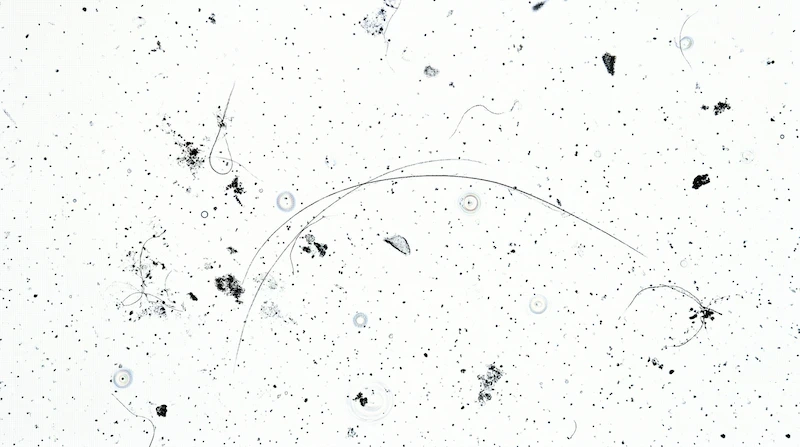
- Use our screen cleaner tool to display a bright background and identify all debris
- Use a dry microfiber cloth to gently wipe the screen in circular motions
- Apply very light pressure—never press hard on the screen
- For stubborn dust in corners, use a soft brush (like a camera lens brush) to dislodge particles before wiping
For Fingerprints and Smudges
- Power off the monitor
- Lightly dampen a microfiber cloth with distilled water or screen cleaning solution
- The cloth should be barely damp—never wet. Wring out thoroughly.
- Wipe gently in one direction (not circular) to avoid spreading smudges
- Follow immediately with a dry microfiber cloth to remove any moisture
- Never spray liquid directly onto the screen—always apply to the cloth first
For Stubborn Residue
- Apply a small amount of screen cleaning solution to a microfiber cloth
- Gently work the residue in small circular motions
- Do not scrub—if residue doesn't come off with gentle pressure, it may be etched into the coating
- Dry immediately with a clean microfiber cloth
4. Special Considerations by Screen Type
Matte/Anti-Glare Screens
The most common screen type. The anti-glare coating is the most vulnerable to damage from harsh chemicals. Use only distilled water or dedicated screen cleaners. Avoid any product containing alcohol or ammonia. The micro-texture of matte screens can trap particles—use a soft brush to dislodge debris before wiping.
Glossy Screens
Glossy screens show fingerprints more readily but are generally more resistant to cleaning products than matte screens. The oleophobic coating degrades with repeated alcohol exposure. Use distilled water for regular cleaning; screen cleaning solution for stubborn smudges.
OLED Screens
OLED panels require extra care. The organic compounds are sensitive to moisture—never allow liquid to seep into the edges of the panel. Use minimal moisture and dry immediately. Avoid pressing on OLED screens as the organic layer can be damaged by pressure. See our OLED maintenance guide for comprehensive OLED care.
Touchscreens
Touchscreens have oleophobic coatings that degrade with alcohol. Use only water or dedicated touchscreen cleaners. The coating will naturally wear over time with use—this is normal and cannot be prevented, only slowed by avoiding harsh cleaners.
5. Long-Term Maintenance Practices
Preventing Dust Accumulation
- Keep your workspace clean and dust-free
- Use a monitor cover when the display is not in use for extended periods
- Position the monitor away from air vents that blow dust toward the screen
- Clean the monitor stand and desk surface regularly to reduce dust sources
Preventing Burn-in (OLED)
- Enable pixel refresh/compensation features in your monitor's OSD
- Use screen savers or auto-sleep for periods of inactivity
- Vary content to avoid static elements remaining on screen for extended periods
- See our OLED maintenance guide for comprehensive burn-in prevention
Backlight Longevity (LCD)
- Reduce brightness to the minimum comfortable level—lower brightness extends backlight life
- Use auto-brightness if available
- Enable sleep mode for periods of inactivity
- Avoid leaving static images on screen at maximum brightness for extended periods
Physical Protection
- Never touch the screen surface unnecessarily
- Keep food and drinks away from the monitor
- Ensure adequate ventilation around the monitor to prevent overheating
- Use a surge protector to protect against voltage spikes
6. Identifying Cleaning Damage
If your screen has been cleaned with inappropriate products, you may notice:
- Haziness or cloudiness: Damaged anti-glare coating. Permanent—cannot be repaired.
- Rainbow patterns: Damaged anti-reflective coating. Permanent.
- Increased fingerprint visibility: Degraded oleophobic coating. Worsens over time with continued alcohol use.
- Streaks that won't wipe off: Mineral deposits from tap water. Can sometimes be removed with distilled water.
Unfortunately, coating damage is generally permanent. Prevention through correct cleaning practices is the only solution.
7. Verifying Screen Cleanliness
After cleaning, use our tools to verify the screen is clean and undamaged:
- Screen Cleaner Tool — display bright backgrounds to spot remaining debris
- White Screen Test — check for smudges and coating damage on a pure white background
- Display Test — verify no cleaning damage affected color uniformity
Sources & Further Reading
- DisplayMate Screen Coating Analysis
- Screen Coating Chemistry — technical deep dive into anti-glare and AR coatings
- OLED Maintenance Tips — burn-in prevention and OLED-specific care
- BlackScreen.live Screen Cleaner — identify debris before cleaning
- White Screen Test — verify screen cleanliness after cleaning