 BlackScreen.live
The Complete Screen Testing Guide
Whether you just unboxed a $600 IPS monitor or noticed a suspicious dot on your laptop screen, running a native black screen test is the fastest way to get an honest answer. This guide explains what you might find, what it means, and exactly what to do about it.
1. Quick Diagnosis: What Did You Find?
Use this table to identify your issue in seconds. Each symptom has a different cause and a different fix — getting the diagnosis right first saves you time.
Budget LCD panels commonly show more visible edge glow, backlight unevenness, and gray-field clouding than higher-end models. Treat any defect as a practical question: is it visible at your normal brightness, normal viewing distance, and normal content? If it is, document it during the return window.
2. The Anatomy of Pixel Defects
A modern 4K monitor contains over 8.2 million pixels, each built from three sub-pixels — Red, Green, and Blue — controlled by individual Thin-Film Transistors. When something goes wrong at the transistor level, you get one of two failure types:
Dead Pixels vs. Stuck Pixels
A Dead Pixel appears as a permanently dark dot because the TFT has failed and the pixel receives no power. It will be black on every test color. A Stuck Pixel is permanently powered in a single color state — it appears as a bright red, green, or blue dot that refuses to change. Stuck pixels are visible on a black screen but may disappear on a matching color field.
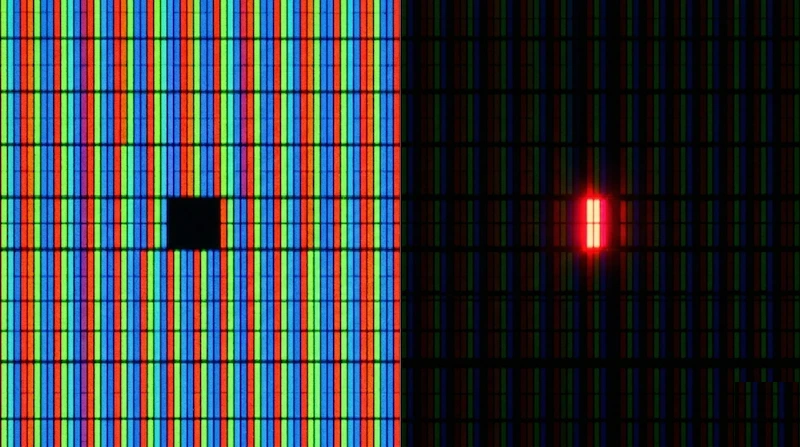
The critical distinction: dead pixels cannot be repaired by any software. Stuck pixels can sometimes recover, especially when they are new. Our Dead Pixel Fixer uses rapid color cycling to exercise the affected sub-pixel, but results vary by panel type, defect age, and whether the pixel is truly stuck rather than electrically dead.
3. Backlight Bleed vs. IPS Glow: How to Tell Them Apart
Almost every LCD panel shows some form of light leakage on a black screen. The critical distinction determines whether you have a returnable defect or a normal panel characteristic.
The Quick Test
Launch the black screen test and look at the bright area. Then shift your head 30 degrees left and right. If the bright zone moves with you — it's IPS glow, a normal property of liquid crystal technology. If it stays fixed in exactly the same spot — it's backlight bleed, a mechanical assembly defect that can be grounds for an RMA.
| Characteristic | Backlight Bleed (Defect) | IPS Glow (Panel Trait) |
|---|---|---|
| Appearance | Harsh, concentrated white or yellow patches at edges and corners | Soft, warm haze radiating from corners — often golden or blue-white |
| Viewing angle | Completely static — same position regardless of where you sit | Shifts and intensifies as you move your head off-center |
| Cause | Uneven bezel pressure creating gaps in the panel sandwich | Inherent optical property of IPS liquid crystal alignment |
| Warranty claim? | Yes, if it's visible during normal use or shifts UI colors | No — it is expected behavior, not a defect |
| Fixable? | Sometimes: gently re-tightening the panel can help, but rarely eliminates it | Manage via lower brightness (120 nits) and raised ambient lighting |
Not sure which you have? Our IPS Glow Database lists severity ratings for 40+ popular monitor models, so you can compare your experience against our tested baseline for your specific panel.
4. OLED Displays: Burn-in and the Black Screen Benefit
Unlike LCD panels which use a universal backlight, OLED pixels are self-emissive — each one generates its own light. When an OLED pixel displays pure black, it turns off entirely, achieving true zero luminance. This is why OLED contrast is so exceptional. But the organic nature of OLED pixels introduces a different aging problem.
How Burn-in Happens
Static on-screen elements — a Windows taskbar, a game HUD, a news channel logo — displayed for thousands of cumulative hours cause those specific pixels to degrade faster than their neighbors. The result is a permanent "ghost" image baked into the panel chemistry. It cannot be reversed.
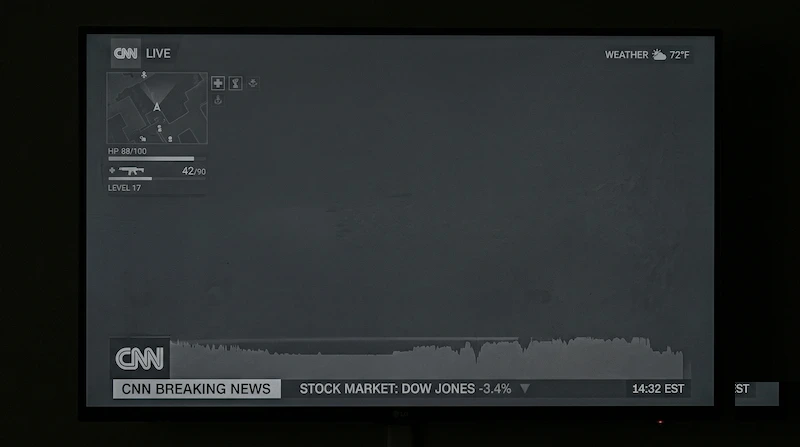
The built-in OLED Refresh Timer in our tool addresses the earliest stage of this problem: when the screen displays pure black, every pixel powers off completely, removing voltage stress and allowing the display's own pixel-refreshing cycles to run. Running a 30-minute black screen session weekly is one of four practices in our OLED maintenance protocol.
5. Industry Standards: When Is a Defect Actually Defective?
Discovering a pixel issue can be frustrating — but manufacturers don't guarantee a flawless panel. The global standard ISO 9241-307 classifies pixel defects into five types and establishes the threshold counts that make a panel legally defective under Class II (which covers most consumer displays).
In practice, a Class II monitor can have up to 2 bright sub-pixel defects and 2 dark defects before it's considered faulty under the standard. This is why knowing your brand's specific policy matters — Dell UltraSharp and BenQ PD series offer zero-defect guarantees that go far beyond the ISO minimum, while most other brands hide behind Class II thresholds.
The most important step: run this test within 24–48 hours of unboxing any new monitor. Defects documented during the retailer's return window (typically 14–30 days) give you the strongest position for a no-questions replacement. Defects found six months later fall under the much harder-to-enforce manufacturer warranty process.
6. Expert Tips for Accurate Testing
Create the Right Environment
Testing conditions dramatically affect what you can detect. For backlight bleed and IPS glow assessment, test in a completely dark room after sunset or with blackout curtains. Your eyes need 2-3 minutes to adapt to darkness before subtle bleed becomes visible. Avoid testing in daylight or with ambient lighting — you'll miss defects that become obvious during evening use.
Use the Correct Viewing Distance
Sit at your normal viewing distance (typically 60-80 cm for a 27" monitor). Testing too close exaggerates minor uniformity issues that aren't visible during actual use. For pixel defect inspection, move closer (30-40 cm) to ensure you don't miss single-pixel failures. Professional reviewers use a standardized 50 cm distance for all panel evaluations to ensure consistency.
Test Multiple Colors in Sequence
Don't stop at black. Run the full diagnostic sequence: black (for bleed and glow), white (for dead pixels and uniformity), then red, green, and blue individually (for stuck sub-pixels). A stuck red sub-pixel might be invisible on a black screen but glaring on a blue background. Our Display Test automates this sequence with additional gray-scale uniformity checks.
Document Everything Immediately
Take photos with your smartphone the moment you discover an issue. For backlight bleed, use a 1-2 second exposure to capture what your eye sees (phone cameras underexpose dark scenes by default). For pixel defects, use macro mode or zoom in to clearly show the affected pixel. These photos are essential for warranty claims and retailer returns. Include a photo of the monitor's serial number in the same session to prove the defect is on your specific unit.
Compare Against Your Panel's Baseline
Not all panels are created equal. Before assuming you have a defect, check our IPS Glow Database to see the typical severity for your specific model. Some panels, like the ASUS VG27AQ, are known for moderate corner glow that's consistent across all units. If your panel matches the documented baseline, you're unlikely to get a better unit through exchange. If it's significantly worse, you have grounds for replacement.
Test Before and After Calibration
If you're calibrating your monitor, run the black screen test both before and after. Calibration adjustments can sometimes reveal (or hide) uniformity issues that weren't apparent at factory settings. This is particularly important for professional color work where even minor backlight non-uniformity can affect color accuracy in dark tones.
Retest After the Break-In Period
Some backlight bleed can improve after 40-100 hours of use as the panel materials settle and internal stresses equalize. If you notice moderate bleed on day one, document it but consider retesting after two weeks of normal use. If it worsens or remains severe, initiate the return process. If it improves to acceptable levels, you may have a keeper. This break-in phenomenon is most common with IPS panels and virtually non-existent with VA or OLED technology.
7. Real-World Case Studies
Case Study 1: The $800 Gaming Monitor with Corner Bleed
Scenario: A user purchased an ASUS ROG Swift PG279QM (27", 1440p, 240Hz IPS) and noticed significant yellow-white light leakage in the bottom-right corner during the black screen test. The bleed was visible even at 50% brightness and created a noticeable haze during dark game scenes.
Analysis: Using our viewing angle test, the user confirmed the light stayed fixed in position regardless of head movement — classic backlight bleed, not IPS glow. Photos taken at 1-second exposure clearly showed the concentrated light patch. The user cross-referenced our database and found that while the PG279QM typically shows minor corner glow, this level of bleed was abnormal.
Outcome: The user contacted ASUS within the 30-day return window, providing photos and referencing ISO 9241-307 standards. ASUS issued an RMA. The replacement unit showed only typical IPS glow with no backlight bleed. Lesson: Document defects immediately and compare against known baselines for your model.
Case Study 2: The Stuck Pixel That Wasn't
Scenario: A user reported a "stuck red pixel" on a new Dell U2723DE monitor. The pixel appeared as a bright red dot on black backgrounds but seemed to disappear on red test screens.
Analysis: This behavior is characteristic of a stuck red sub-pixel, not a fully stuck pixel. The user ran our Dead Pixel Fixer tool for 30 minutes, targeting the affected area with high-frequency color cycling. After the session, the pixel returned to normal function.
Outcome: The stuck sub-pixel recovered after an early color-cycling session and did not recur during the user's short follow-up period. Lesson: A newly stuck pixel is worth testing before you assume a return is the only option, but software repair is never guaranteed.
Case Study 3: OLED Burn-In Prevention
Scenario: A professional video editor using an ASUS ProArt OLED PA32DC for 8-10 hours daily was concerned about burn-in risk from static UI elements in Adobe Premiere Pro.
Analysis: The user implemented our four-point OLED maintenance protocol: (1) weekly 30-minute black screen sessions using our timer tool, (2) enabling pixel shift in monitor settings, (3) using auto-hide taskbar and menu bars, (4) limiting peak brightness to 150 nits for SDR content. After 18 months of heavy use, the panel showed no signs of image retention or burn-in.
Outcome: Proactive maintenance successfully prevented burn-in despite intensive professional use with static elements. Lesson: OLED longevity is manageable with proper care routines. Regular black screen sessions are a simple but effective component of panel preservation.
Case Study 4: The IPS Glow Misdiagnosis
Scenario: A user was preparing to return an LG 27GP850 for "excessive backlight bleed" visible in all four corners during the black screen test at 100% brightness.
Analysis: When asked to perform the viewing angle test, the user discovered the bright areas shifted and moved as they changed head position — textbook IPS glow, not backlight bleed. Checking our IPS Glow Database revealed the 27GP850 has moderate corner glow that's consistent across all units due to its Nano IPS panel technology. At the user's normal viewing brightness (40%), the glow was barely perceptible.
Outcome: The user kept the monitor after understanding this was normal panel behavior, not a defect. They adjusted their testing expectations and confirmed the panel had no actual backlight bleed or pixel defects. Lesson: Understanding the difference between IPS glow (normal) and backlight bleed (defect) prevents unnecessary returns and frustration. Always test at realistic brightness levels, not just 100%.
A practical at-home testing protocol: (1) Dark room environment, (2) 2-minute eye adaptation period, (3) Black screen test at 100% brightness for bleed detection, (4) Retest at normal brightness (40-60%) for usability assessment, (5) White, red, green, blue screens for pixel defects, (6) Compare results against model-specific baselines, (7) Document with photos immediately, (8) Retest after 2-week break-in period if issues are borderline.
8. Frequently Asked Questions
How long should I run the black screen test?
For a basic inspection, 60 seconds is sufficient to identify obvious defects. For a thorough examination, run the test for 3-5 minutes while systematically scanning each quadrant of the screen. If you're testing an OLED panel, use the built-in timer to prevent static image retention — we recommend 5-10 minute sessions maximum.
Should I test at 100% brightness?
Yes, for backlight bleed detection. Bleed is most visible at maximum brightness in a completely dark room. However, for daily use assessment, also test at your typical brightness setting (usually 120-150 nits or 40-60% brightness) to see if the bleed is noticeable under realistic conditions. Many panels show minor bleed at 100% that completely disappears at normal viewing brightness.
Is some IPS glow normal on every IPS monitor?
Yes. IPS glow is an inherent optical property of In-Plane Switching liquid crystal technology, not a defect. The severity varies by panel model, with some designs minimizing it better than others. Our IPS Glow Database shows that premium models like the LG 27GP950 and Dell U2723DE exhibit significantly less glow than budget alternatives. If the glow is so severe that it affects content visibility during normal use, that may indicate excessive panel pressure or a manufacturing issue worth investigating.
Can a dead pixel appear after months of use?
Yes. While many dead pixels are present from manufacturing, transistor failures can occur during the panel's lifespan due to electrical stress, thermal cycling, or material degradation. This is why periodic testing is valuable, especially before warranty expiration. Document any new defects immediately and check your warranty coverage — some manufacturers offer extended pixel warranty programs.
Will running this test damage my OLED screen?
No. Displaying a static black image is actually beneficial for OLED panels because all pixels are powered off, eliminating voltage stress. This is fundamentally different from displaying static bright content, which accelerates organic material degradation. Our timer feature is designed specifically to prevent accidentally leaving a static test pattern on-screen for extended periods. For OLED maintenance, we recommend weekly 30-minute black screen sessions as part of a comprehensive care routine detailed in our OLED longevity guide.
Why does my laptop screen look worse than my desktop monitor?
Laptop panels typically use lower-grade LCD technology due to cost, thickness, and power consumption constraints. Most consumer laptops use 6-bit+FRC panels with inferior backlight uniformity compared to desktop monitors. Additionally, the compact chassis design often creates uneven bezel pressure, increasing the likelihood of backlight bleed. Premium laptops like the MacBook Pro 16" and Dell XPS 15 use higher-quality panels, but even these rarely match the uniformity of a dedicated desktop monitor.
Can I return a monitor for IPS glow?
Technically no, because IPS glow is not classified as a defect under ISO 9241-307 or most manufacturer warranties. However, if the glow is severe enough to affect usability, some retailers may accept a return under their satisfaction guarantee policies during the return window. Your success depends on the retailer's flexibility and how you document the issue. Always test within the return period and take clear photos showing the glow's impact on actual content, not just a black screen.
What's the difference between a stuck pixel and a hot pixel?
These terms are often used interchangeably, but technically a "hot pixel" refers to a pixel that's brighter than it should be across all colors, while a "stuck pixel" is locked in a specific color state (red, green, or blue). Both are caused by transistor malfunctions. In practice, most people use "stuck pixel" as the general term. The important distinction is between stuck pixels (potentially fixable) and dead pixels (permanently failed, not fixable).
Sources & Further Reading
- ISO 9241-307:2008 — Analysis and compliance test methods for electronic visual displays (pixel defect classification)
- VESA DisplayHDR Performance Criteria — backlight uniformity and panel performance standards
- BlackScreen.live — Dead Pixel Warranty Policy: every major brand compared
- BlackScreen.live — IPS Glow severity guide by monitor model
- BlackScreen.live — OLED Longevity: professional maintenance standards