The Ultimate Screen Testing Guide
Whether you have just purchased a brand-new 4K gaming monitor or are trying to diagnose a fading laptop display, running a pure black screen test is the most fundamental step in screen diagnostics. Here is everything you need to know about panel defects, aging, and display quality standards.
1. The Anatomy of Pixel Defects: Why Do Black Dots Appear?
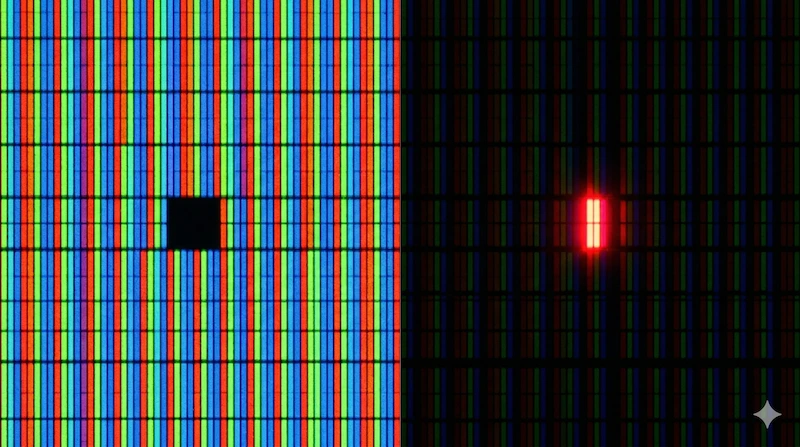
A modern 4K monitor contains over 8.2 million pixels. Each of these pixels is constructed from three distinct sub-pixels (Red, Green, and Blue), bringing the total to nearly 25 million individual microscopic transistors. When evaluating your screen, it is essential to distinguish between the two main types of failure.
Dead Pixels vs. Stuck Pixels
If you see a completely dark dot on a white background, you have found a Dead Pixel. This means the Thin Film Transistor (TFT) has permanently failed, and the pixel is receiving no power. Conversely, if you notice a bright red, green, or blue dot that refuses to change color, it is a Stuck Pixel. This sub-pixel is constantly receiving an electrical charge.
2. Backlight Bleed vs. IPS Glow: Decoding Light Leakage
Almost all LCD panels (especially IPS and VA) suffer from some form of light leakage when displaying dark scenes. The black screen test is designed specifically to expose these issues in a dim environment.
What Causes Light Leakage?
Backlight Bleed is a hardware assembly issue. It occurs when the monitor's bezel applies uneven pressure to the edges of the LCD screen, allowing the LED backlight to physically "leak" through the edges. It appears as harsh, cloud-like white light bordering the screen.
IPS Glow, however, is a physical characteristic of In-Plane Switching technology. The liquid crystals in an IPS panel cannot block 100% of the backlight at wider viewing angles, resulting in a soft, warm, or cool haze across the corners of the screen.
| Characteristic | Backlight Bleed (Defect) | IPS Glow (Panel Trait) |
|---|---|---|
| Appearance | Harsh, concentrated white or yellow light patches at the edges. | Soft, hazy glow radiating from the corners across the screen. |
| Viewing Angle | Remains static regardless of where you sit. | Shifts and changes intensity as you move your head. |
| Fixability | Sometimes mitigated by gently massaging the bezel (not recommended). | Inherent to the technology; cannot be fixed. |
3. Display Aging: OLED Burn-in and Degradation
Unlike LCDs, which use a universal backlight, OLED (Organic Light-Emitting Diode) displays feature self-illuminating pixels. When an OLED pixel displays pure black, it turns off completely, resulting in infinite contrast. However, this organic nature introduces a unique set of aging problems.
The Mechanics of Burn-In
If static elements—such as a Windows taskbar, a gaming HUD, or a news channel logo—are displayed for thousands of hours, the organic compounds in those specific pixels degrade faster than the surrounding ones. This uneven aging creates a permanent "ghost" image known as burn-in.
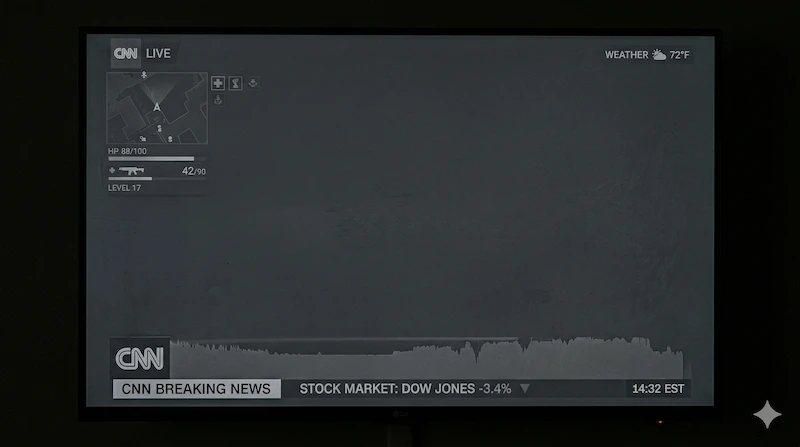
To maximize panel longevity, our tool features a built-in OLED Refresh Timer. Launching a pure black screen forces all pixels to power down, allowing the organic materials to rest uniformly and helping the display's internal pixel-cleaning cycles to run efficiently.
4. What to Do If Your Screen Fails the Test?
Discovering a defect during a black screen test can be frustrating. However, not all issues require you to return the monitor immediately. Here is a practical troubleshooting path:
- For Stuck Pixels: Do not press on the screen. Instead, use our Dead Pixel Fixer. By rapidly cycling high-contrast colors (chromatic agitation), you can sometimes force the liquid crystals to "unstick" and return to normal operation.
- For Dirt and Smudges: Often, what looks like a dead pixel is actually a microscopic speck of dust trapped under the anti-glare coating or simply dirt on the surface. Switch to our Screen Cleaner mode, which disables touch inputs, and wipe the screen gently with a dry microfiber cloth.
- For Severe Bleeding: If the backlight bleed is so severe that it washes out colors during normal use (not just in a pitch-black room), document the issue with photographs and initiate an RMA (Return Merchandise Authorization) with your retailer.
5. Industry Standards for Display Quality
It is important to understand that manufacturers do not guarantee a 100% flawless panel. Due to the extreme complexity of semiconductor manufacturing, the industry operates under strict tolerance guidelines.
The global standard for defining acceptable pixel defects is ISO 9241-307. Under this standard, monitors are classified into tiers (usually Class 1 or Class 2). A Class 2 monitor (which covers most consumer displays) is permitted to have a small number of dead or stuck sub-pixels per million pixels before it is legally considered "defective."
Authority Reference & Verification
To understand the exact legal thresholds for warranty returns and pixel defect classifications, you can refer to the official documentation provided by the International Organization for Standardization (ISO) and display mounting/testing protocols maintained by the Video Electronics Standards Association (VESA).